


Genius Scan - PDF Scanner
4.925.03K Reviews
App Specs
- Version
- 7.41.0
- Updated On
- License
- Free
- Downloads
- 10,000,000+
- Developer
- The Grizzly Labs
- Categories
- Business
- Platform
- Android, iOS
Screenshots

 Analysis by AppCompare
I often need a clean copy of a receipt, form, or letter when there isn’t a scanner nearby, and using a phone camera alone can leave awkward shadows and crooked edges. Genius Scan - PDF Scanner is built for that gap: it turns document photos into files I can keep, organize, and share. I find it most useful when I want a practical scanning workflow without first learning a complicated tool.
Who benefits most from a pocket scanner
This is a business app from The Grizzly Labs, but its appeal extends well beyond an office. Students can collect pages from handouts, freelancers can keep client paperwork together, and anyone managing household bills can save a receipt before it disappears into a drawer. The app is free to install, rated for Everyone, and has an average rating of 4.9 from around 558,000 ratings, with over 10 million installs. Those figures suggest a widely used tool, though they don’t tell me whether its workflow fits every person’s needs.
For occasional scanning, the central question is whether a phone can produce a file that is easy to read and send. For me, the useful distinction is between taking a picture and creating a document: automatic edge detection, page adjustments, and the ability to combine scans make the latter feel more deliberate. I would still use a dedicated scanner for a large archive or a high-volume office job, but for a few pages at a time, a phone is easier to have on hand.
Readable scans and straightforward navigation
If you're anything like me, you've probably found yourself in situations where you desperately need to scan a document but don't have access to a scanner. Enter Genius Scan, the app that promises to turn your smartphone into a powerful document scanning tool. I've taken this app for a spin and here’s my experience, from its features to its quirks.
First Impressions
As soon as I launched Genius Scan, I was greeted with a clean and user-friendly interface. You know those apps that make you feel like you need a PhD just to navigate the main screen? This is not one of them. Everything is laid out intuitively, making it easy for even the most technologically challenged among us to get started.
Scanning Documents Made Easy
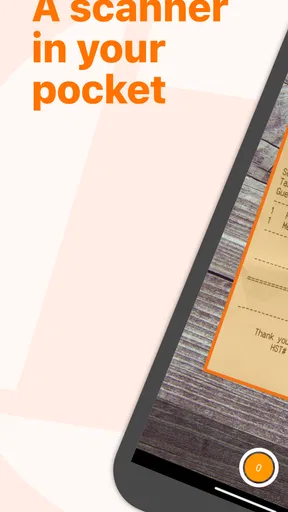
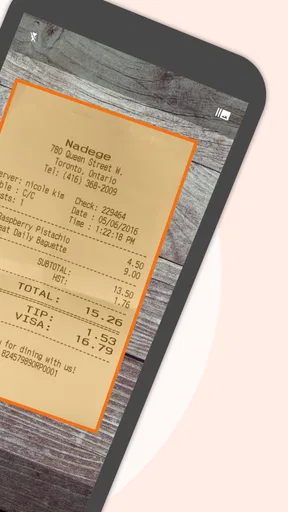
The core feature of this app, as you might have guessed, is scanning documents. I tested it out with a variety of documents—everything from glossy magazine pages to crumpled receipts—and I was genuinely impressed by how well it handled each one. The app automatically detects the edges of the document, which is a huge time-saver.
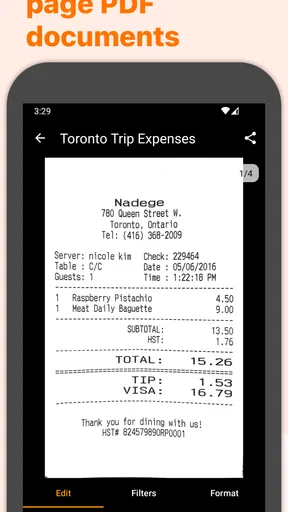
One feature I particularly liked is the ability to scan documents in bulk. Just snap photos of all your pages, and voilà, they’re compiled into a single PDF. It’s like magic, but real. Plus, the app offers options to enhance the scan quality, such as adjusting the contrast and brightness, which came in handy for those hard-to-read receipts.
Worth Reading Before You Choose

Baby Panda World Brings Quick Play to Modern Phones, but Its Game Library Feels Busy

ESPN’s Live Game View Makes Following Close Games Easier

QuizzLand Review: A Good Fit for Short Trivia Breaks, Not Every Player

Basketball Stars: Multiplayer Is Fast, but Can It Recover When Matches Go Wrong?

WEBTOON Turns Phone Updates Into a Better Reading Routine

Link to Windows Runs on Shared Habits, Not Social Feeds
Organize Like a Pro
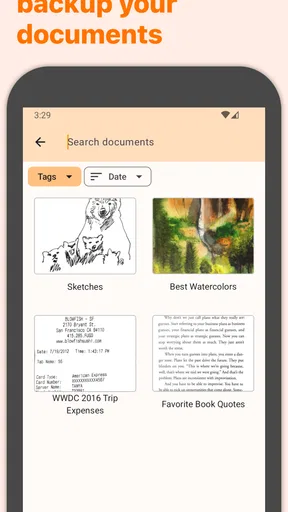
Once you’ve scanned your documents, organizing them is a breeze. The app allows you to easily create folders, tag documents, and search for them later. This is a game-changer for anyone who’s ever had to sift through a mountain of digital files to find that one elusive document.
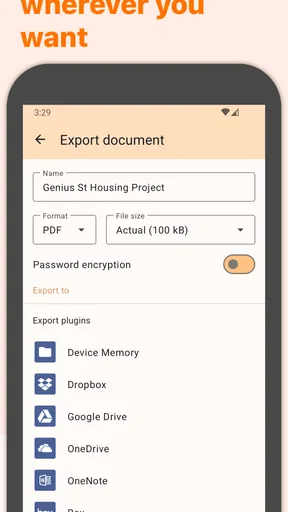
The app also provides cloud integration, so you can sync your documents with services like Dropbox, Google Drive, and Evernote. I found this feature particularly useful for backing up important documents and accessing them on the go.
Security and Privacy
In today’s world, security is a top concern, and the makers of Genius Scan seem to understand that. The app offers a password protection feature for your PDFs, giving you peace of mind knowing that sensitive information is kept secure. Additionally, the app doesn’t require you to create an account, which is great for those who prefer to keep their data private.
Additional Features Worth Mentioning
While scanning and organization are the stars of the show, there are a few extra features that add to the app’s utility. For instance, the app supports document editing, allowing you to crop and rotate pages as needed. There’s also an option to export your scans in different formats, including JPEG, if you need something other than a PDF.
Another neat feature is the ability to merge multiple documents into a single PDF. This came in handy when I needed to send a set of related documents to a colleague. And for those who frequently scan sensitive documents, the app’s Touch ID and Face ID integration offer an extra layer of security.
Fitting a scan into a busy day
A realistic use is sorting out travel or expense paperwork at the end of a day: I can photograph several receipts in one session, check that their edges are captured, improve contrast where a faint print needs help, and keep the pages together for later sharing. The small but important habit is to review each page before leaving the camera workflow. A receipt with a curled corner or a shadow across its total may be technically saved but still hard to use; a quick crop or brightness adjustment can prevent a second trip to the original paper.
For multi-page forms, I’d scan in the order the recipient expects to read them, then inspect the compiled PDF before sending. That avoids a common phone-scanning annoyance: having every page but discovering they are out of sequence only after the file has been shared. The ability to merge documents is also handy when separate pieces belong together, though I would keep unrelated records in separate files rather than making one oversized bundle that becomes difficult to search or send.
Motor and sensory considerations
Automatic edge detection can reduce the need for precise manual cropping, which is helpful when steady framing is difficult. It does not remove the physical demands of photographing paper: the phone still needs to be positioned, the page kept visible, and the capture checked. If holding a phone steady is uncomfortable, placing the document on a flat, contrasting surface and taking time to align the camera may be easier than trying to scan while walking or balancing papers in one hand.
Contrast and brightness adjustments are useful when a scan looks washed out or faint, but they are not a substitute for a legible original. I would check small print at a comfortable zoom before relying on a scan, especially for amounts, dates, or instructions. People who depend on particular screen-reader, magnification, or other accessibility behavior should test the specific tasks they need on their own device; a simple-looking interface is encouraging, but it alone does not establish that every control works well for every access need.
When a phone scan is—and isn’t—the right choice
Compared with a camera app, a document scanner is more purposeful: it can detect page boundaries, adjust the image, and assemble multiple pages into a document rather than leaving a folder of unrelated photos. Compared with a flatbed or office scanner, it is faster to reach for and easier to use away from a desk, but it relies on the phone’s camera and the conditions around the paper. If I needed consistent results across a thick stack, precise archival reproduction, or repeated batch work, I would choose dedicated scanning equipment instead.
It may also be the wrong choice if someone only needs to photograph a single item once in a while and already has a camera workflow that meets their needs. The extra organization and document handling are most valuable when scans accumulate. Conversely, anyone who routinely needs cloud syncing or advanced export options should check which capabilities are available in the version they plan to use before building a daily workflow around them.
Things to Keep in Mind
While my experience with Genius Scan was overwhelmingly positive, it’s worth noting a couple of caveats. The free version of the app does have some limitations, and to unlock features like cloud sync and advanced export options, you’ll need the paid version. That said, the free version is still very capable and might be all you need for occasional use.
Also, while the automatic edge detection is generally spot-on, it can occasionally struggle with documents that have intricate borders or patterns. In those cases, a bit of manual adjustment might be necessary.
Costs, versions, and practical expectations
The app is free, with in-app purchases ranging from $0.99 to $39.99 per item. Since the free experience has limitations and some syncing and export options sit behind paid access, I would start by scanning the kinds of pages I actually handle and see whether the basic workflow is enough. That is a better test than paying in anticipation of features I may never use. The current version is 7.35.1, and the stated minimum operating-system requirement is 8.0, so checking compatibility before installing is sensible when using an older device.
Genius Scan was released on August 26, 2013, and has accumulated around 25,000 written reviews. Its long presence and broad adoption make it a familiar option in mobile document scanning, but I would treat popularity as context, not a guarantee that its controls or paid features suit my particular routine. For an occasional user, the most useful test is simple: can I capture a page, read it clearly, find it again, and share it in the format I need?
Final Thoughts
All in all, Genius Scan - PDF Scanner is a fantastic tool that truly lives up to its name. Whether you’re a student, a professional, or just someone who occasionally needs to scan documents, this app offers a convenient and powerful solution. The ease of use, coupled with its robust feature set, makes it a must-have for anyone looking to ditch their bulky scanner.
If you're ready to transform your smartphone into a mini scanning powerhouse, you can download the app on both Android and iOS. Trust me, once you start using it, you'll wonder how you ever managed without it!
An inclusive verdict
I see this as a strong choice for people who want to turn paper into manageable files without setting up office equipment. Its clearest strengths are an approachable starting point, multi-page handling, and practical ways to correct and organize scans. The trade-offs matter too: edge detection can need help, paid access may be necessary for a more connected workflow, and taking a good scan still depends on positioning the phone and checking the result.
For someone who scans occasional forms, receipts, or class notes, I’d try the free version first and judge it by readability, comfort, and how easily the saved files fit into everyday routines. If accessibility depends on specific touch, vision, or assistive-technology needs, I’d test those exact actions before relying on it for important paperwork. That is a more useful standard than assuming that a clean interface automatically works for everyone.
Pros
- Easy to use and intuitive interface.
- High-quality document scans.
- Batch scanning saves time.
- Organizes documents efficiently.
- Secure document storage options.
Cons
- Limited features in free version.
- Ads can be intrusive.
- Occasional scan alignment issues.
- No OCR in free version.
- Some features require internet.
FAQs for Genius Scan - PDF Scanner
What features does Genius Scan offer to enhance document scanning?
Genius Scan provides a range of features to enhance document scanning, such as automatic edge detection, perspective correction, and high-quality image processing. It also allows for batch scanning, making it easy to handle multiple pages quickly. Additionally, the app supports exporting documents in PDF or JPEG formats, ensuring compatibility with various platforms.
Is Genius Scan secure for handling sensitive documents?
Yes, Genius Scan offers several security features to protect your documents. It includes encryption options and biometric authentication to prevent unauthorized access. The app also supports secure cloud storage services, allowing you to safely back up and sync your documents. These features ensure your sensitive information remains protected.
Can Genius Scan integrate with cloud services?
Genius Scan integrates seamlessly with a variety of cloud services, including Dropbox, Google Drive, and OneDrive. This integration allows for easy uploading and sharing of scanned documents across platforms. You can also automate workflows by setting up automatic exports to these services, streamlining your document management process.
Does Genius Scan support text recognition (OCR)?
Yes, Genius Scan includes Optical Character Recognition (OCR) capabilities. This feature allows the app to convert scanned images into editable text, making it easier to search and edit documents. OCR supports multiple languages, enhancing the app's versatility for users who work with diverse text content.
Is Genius Scan available for both Android and iOS devices?
Yes, Genius Scan is available for both Android and iOS platforms. This cross-platform availability ensures that users can access the app's features regardless of their device preference. The app is regularly updated to maintain compatibility and introduce new features, providing a consistent experience across devices.


